Labeltidy

Convert a DPD label to 6x4

Free 6x4 converter for DPD labels. It runs in your browser, so the addresses on your labels never leave your device.

or drop them anywhere on this page

Paste with Ctrl+V

  1. Add PDFs or images from any carrier
  2. Check the crop and the barcode
  3. Save one 6x4 PDF and print at 100%
How it works, with made-up sample labels. Nothing in the demo is a real label.
Settings
Print at 100% (actual size). · Your labels stay in this browser tab.

Your labels

0 labels
What do the outlines mean?
  • Green, OK: every barcode reads at print size.
  • Amber, CHECK: it reads, but only just (very thin bars or a low-resolution source). Do a test print.
  • Red, FAIL: a barcode may not scan at print size. Enlarge it, reduce the margin or use a higher-resolution original.

More on the barcode check

No label selected

Add labels, then pick one to see it here on the mat.

Prints at–
Source–
Barcodes–

How to print a DPD label on a thermal printer

  1. Download the label PDF from your DPD account or from the shop or marketplace where you booked the parcel.
  2. Add it to Labeltidy. It finds the label on the page, trims the whitespace and turns it upright. DPD labels are recognised automatically.
  3. Check the barcode. A green outline means every barcode still reads at print size.
  4. Save the 6x4 PDF and print it at 100% (actual size) with the paper size set to 4x6 in (100x150 mm).
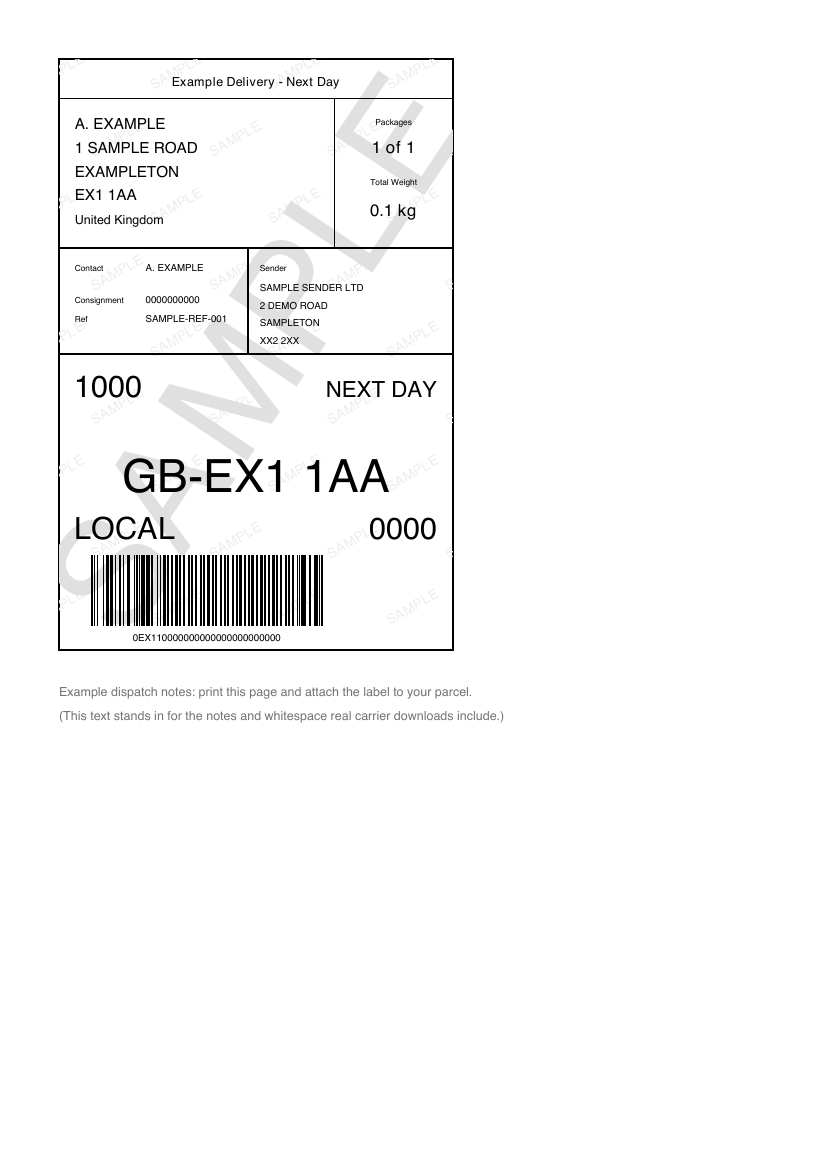
A DPD style sample label on an A4 page, with whitespace and notes around it

Before: label on an A4 page

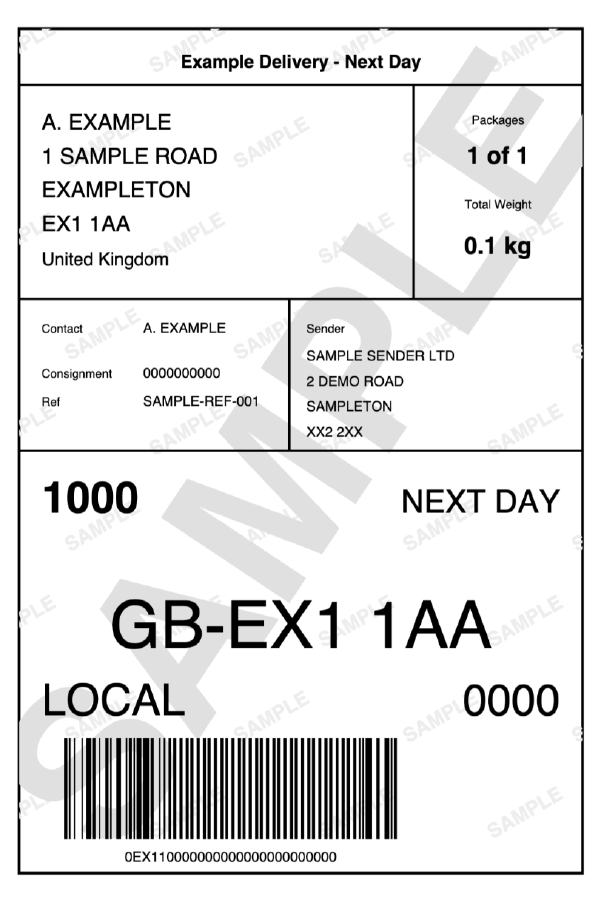
The same DPD style label cropped to fill a 6x4 inch page

After: 6x4, ready to print

A made-up DPD style label, not a real one. Tap "Try a sample label" above to see it in the tool.

Printing several DPD labels at once

Add the whole batch together. Labeltidy builds one PDF with a label per page, removes duplicates and can sort by carrier if you are mixing couriers.

Questions

Can I print DPD labels on a 4x6 thermal printer?

Yes. Download the label PDF, add it to Labeltidy and save the 6x4 PDF it produces. Print that at 100% with the paper size set to 4x6 in.

Can I convert lots of DPD labels at once?

Yes. Add them all together and save one PDF with a label per page.

What do the green, amber and red outlines mean?

Labeltidy renders each label at your printer resolution in black and white and scans it again. Green (OK) means every barcode reads at print size. Amber (CHECK) means it reads but only just, for example very thin bars or a low-resolution source, so do a test print. Red (FAIL) means a barcode may not scan, usually because the label was shrunk too far, the margin is too tight or the source image is low resolution. There is a full explanation in the barcode check guide at /barcode-check-guide.

Are my labels uploaded anywhere?

No. Everything runs in your browser on your own device, so addresses and tracking numbers never leave it.

Is it free?

Yes. It is free and needs no account or sign-up.

Convert labels from any courier

Handling labels

Add everyday handling labels to your labels, at the same size. Print them on their own or in the same PDF as your shipping labels. How many of each?

    Printed under the main words on every label you add now. Up to 32 characters. Tap a label to see it larger.

    Batteries and hazardous items

    These are ordinary handling labels. The labels for batteries and dangerous goods are set by regulation and your carrier's rules, with fixed sizes, wording and colours, so they can't be made here. Rules change, so check your carrier's current rules before posting.

    What can I send (Post Office) · Lithium batteries (IATA) (both open in a new tab)

    Packing slips

    A 6x4 slip for inside each parcel, printed on the same roll as your shipping labels.

      Your shop name, note and return address are remembered on this device for next time.

      What it recognises

      It reads the words and shapes in your file. Nothing is sent anywhere.

      Carriers

      Yodel and InPost are listed separately because their labels look different.

      Handling marks

      These are skipped by default so you don't waste thermal labels. You can print them on their own pages or on one combined page in More settings.

      Pages and sheets

      Shipping labels and return labels. Dispatch notes and invoices are found and skipped. Sheets with one, two or four labels, in portrait or landscape, including upside-down text.

      Barcodes

      Code 128, Code 39, Code 93, EAN, UPC, ITF, Codabar, QR, Data Matrix, PDF417 and Aztec. Each one is scanned again at your printer resolution.

      Files

      PDF, PNG, JPG, GIF and WebP, up to 25 MB each when loaded from a link.

      Limits

      Printing tips

      1. Paper size: in the print dialog, choose 6x4 in.
      2. Scale: set 100% or "Actual size". Never "Fit to page", or the barcode shrinks.
      3. Margins: none, or the default if your driver has no "none". The labels already include a margin.
      4. Printer: pick your thermal printer. If it prints blurry, match its resolution (203 or 300 dpi) in the settings strip.
      5. First print: do one label first and check the barcode scans.

      Full printing guide, with fixes for common problems

      Load labels from a link

      Your browser downloads each file straight from that site and nothing passes through us, but that site can see your address. It must allow other websites to read the file, and the link has to work without logging in.

      Crop

      Drag on the page to choose what to keep. The dashed frame shows the paper it will print on.

      Keyboard: arrow keys move the crop, Shift with arrows resizes it, and Ctrl or Cmd makes the steps bigger. Esc cancels.