Convert an Amazon shipping label to 6x4
Free 6x4 converter for Amazon shipping labels. It runs in your browser, so the addresses on your labels never leave your device.
Paste with Ctrl+V
- Add PDFs or images from any carrier
- Check the crop and the barcode
- Save one 6x4 PDF and print at 100%
Your labels
0 labelsMore tools
Delete removes selected · Ctrl/Cmd+A selects all · Shift-click selects a range · Ctrl/Cmd+Z undoes · Drag labels to reorder, or Alt+←/→ on a focused label · ←/→ steps through the preview · Ctrl/Cmd+V pastes a label
What do the outlines mean?
- Green, OK: every barcode reads at print size.
- Amber, CHECK: it reads, but only just (very thin bars or a low-resolution source). Do a test print.
- Red, FAIL: a barcode may not scan at print size. Enlarge it, reduce the margin or use a higher-resolution original.
How to print an Amazon shipping label on a thermal printer
- Download the label PDF from your Amazon account, for example from Seller Central when you buy postage, or from your returns page.
- Add it to Labeltidy. It finds the label on the page, trims the whitespace and turns it upright. Amazon labels are recognised automatically.
- Check the barcode. A green outline means every barcode still reads at print size.
- Save the 6x4 PDF and print it at 100% (actual size) with the paper size set to 4x6 in (100x150 mm).
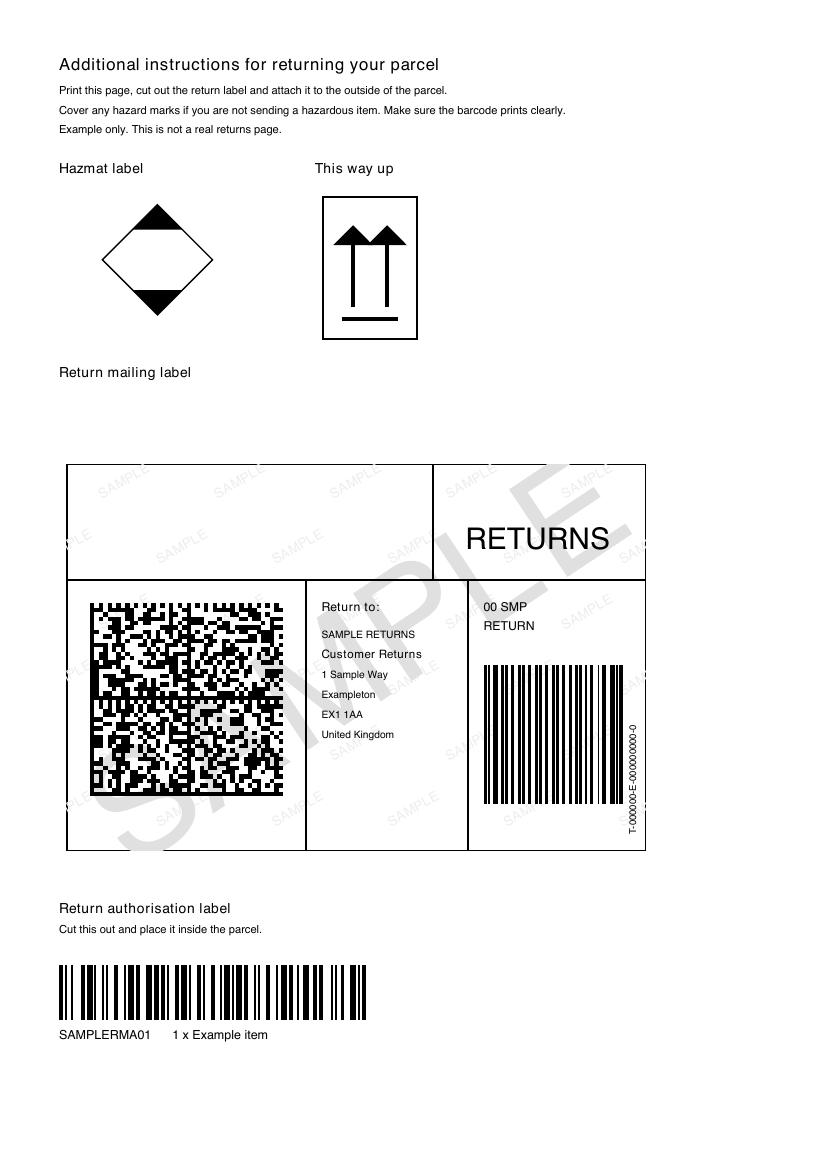
Before: label on an A4 page
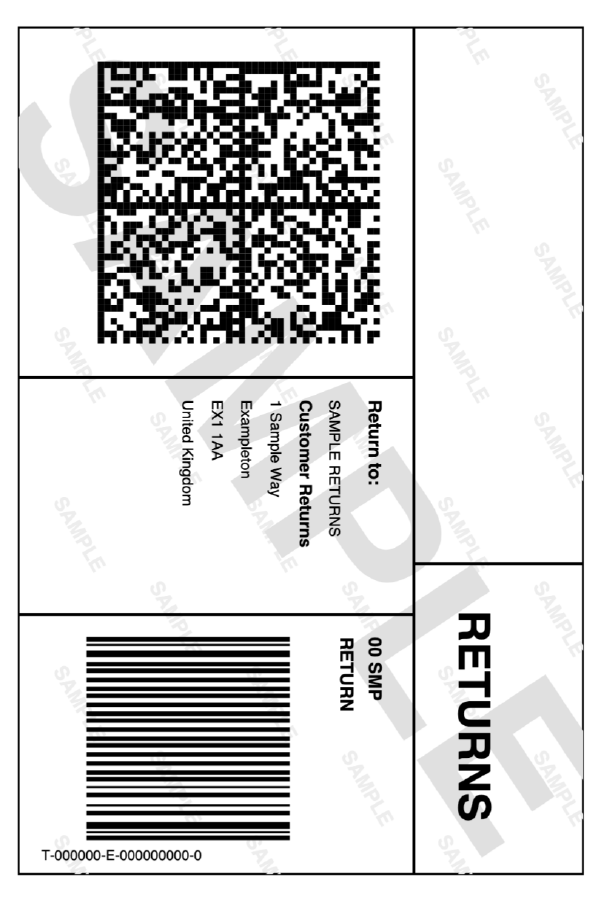
After: 6x4, ready to print
If the packing slip prints as well
Amazon downloads can include a packing slip or dispatch note next to the label. Labeltidy skips these by default so you do not waste a thermal label; you can switch that on in More settings.
Questions
Can I print Amazon shipping labels on a 4x6 thermal printer?
Yes. Download the label PDF, add it to Labeltidy and save the 6x4 PDF it produces. Print that at 100% with the paper size set to 4x6 in.
Does it skip the packing slip?
Yes, by default. Dispatch notes and invoices are skipped so only the shipping label is printed. You can include them in More settings.
What do the green, amber and red outlines mean?
Labeltidy renders each label at your printer resolution in black and white and scans it again. Green (OK) means every barcode reads at print size. Amber (CHECK) means it reads but only just, for example very thin bars or a low-resolution source, so do a test print. Red (FAIL) means a barcode may not scan, usually because the label was shrunk too far, the margin is too tight or the source image is low resolution. There is a full explanation in the barcode check guide at /barcode-check-guide.
Are my labels uploaded anywhere?
No. Everything runs in your browser on your own device, so addresses and tracking numbers never leave it.
Is it free?
Yes. It is free and needs no account or sign-up.